As computers age, they tend to slow down due to software inefficiencies, cluttered storage, and outdated settings. While upgrading hardware is an effective way to boost performance, it can be costly. Fortunately, there are numerous strategies to optimise your computer’s performance without spending a penny on new hardware.
This comprehensive guide will walk you through practical steps to clean, streamline, and fine-tune your computer’s software and settings to improve speed and responsiveness.
1. Clean Up Your Storage
Over time, unnecessary files and applications accumulate on your computer, taking up valuable space and slowing down performance.
1.1. Delete Temporary Files
Temporary files, created by the operating system and applications, can pile up and consume storage.
For Windows:
- Open Disk Cleanup by typing it into the Start menu.
- Select your drive (usually C:) and click OK.
- Tick the boxes for temporary files, recycle bin, and other unwanted items, then click Clean up system files.
For macOS:
- Use Finder to locate and delete temporary files in the Library > Caches folder.
- Regularly empty the Trash to free up space.
1.2. Uninstall Unnecessary Applications
Unused programs not only take up space but may also run background processes that slow down your computer.
For Windows:
- Go to Control Panel > Programs > Uninstall a program.
- Select unwanted applications and click Uninstall.
For macOS:
- Open the Applications folder in Finder.
- Drag unused apps to the Trash, then empty it.
1.3. Remove Large or Duplicate Files
Manually review your storage for large files you no longer need or use tools like CCleaner (Windows) or Gemini (macOS) to locate and delete duplicates.
2. Optimise Startup Programs
When too many applications launch at startup, they slow down your computer’s boot time and consume resources unnecessarily.
2.1. Disable Startup Programs
For Windows:
- Press Ctrl + Shift + Esc to open Task Manager.
- Click the Startup tab to view programs that launch at startup.
- Right-click on unnecessary programs and select Disable.
For macOS:
- Go to System Preferences > Users & Groups.
- Select your profile and click the Login Items tab.
- Highlight items you don’t need and click the – button to remove them.
3. Update Your Software
Outdated software can lead to compatibility issues, performance problems, and security vulnerabilities. Keeping your system and applications updated ensures smoother operation.
3.1. Update the Operating System
Both Windows and macOS regularly release updates to optimise performance and fix bugs.
For Windows:
- Go to Settings > Update & Security > Windows Update.
- Click Check for updates and install any available updates.
For macOS:
- Open the Apple menu > System Preferences > Software Update.
- Install updates if prompted.
3.2. Update Drivers
Drivers allow your hardware and operating system to communicate effectively. Outdated drivers can cause performance issues.
For Windows:
- Open Device Manager by typing it into the Start menu.
- Right-click a device and select Update driver.
- Follow the on-screen instructions to search for updates.
4. Improve Virtual Memory Management
Virtual memory acts as an extension of your computer’s RAM, and poor management can slow performance.
4.1. Adjust Virtual Memory Settings
For Windows:
- Open the Control Panel > System > Advanced system settings.
- Under Performance, click Settings, then navigate to the Advanced tab.
- Under Virtual Memory, click Change.
- Select your system drive, choose Custom size, and allocate virtual memory based on your needs (e.g., 1.5x your RAM size).
For macOS:
macOS automatically manages virtual memory. To improve performance, focus on closing unused applications to free up RAM.
5. Scan for Malware and Viruses
Malware and viruses can significantly slow down your computer by using system resources and interfering with operations.
5.1. Use Antivirus Software
- Install a reliable antivirus program such as Windows Security (built into Windows 10 and 11) or third-party solutions like Avast or Bitdefender.
- Run a full system scan to detect and remove malware.
5.2. Use Anti-Adware and Anti-Spyware Tools
Adware and spyware often operate in the background, consuming resources. Tools like Malwarebytes can effectively remove these threats.
6. Defragment and Optimise Drives
Fragmentation occurs when files are stored in scattered locations on the hard drive, slowing down read and write speeds.
6.1. Defragment Hard Drives (HDDs)
For Windows:
- Open Defragment and Optimise Drives from the Start menu.
- Select your HDD and click Optimise.
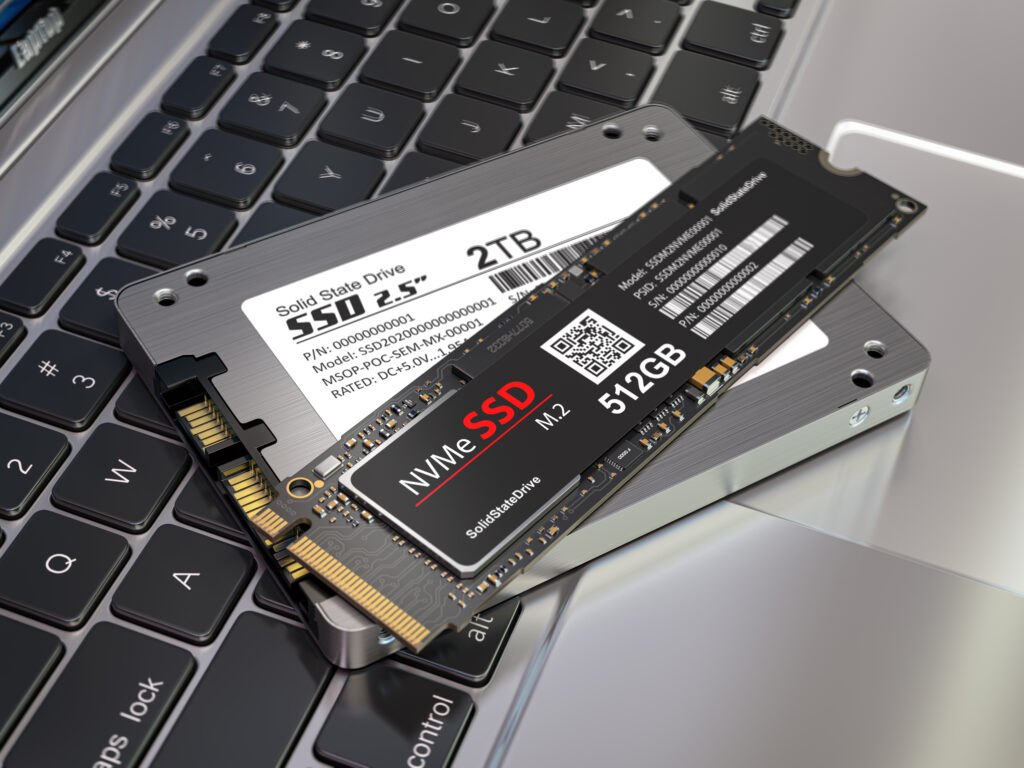
Note: Solid-state drives (SSDs) do not require defragmentation. Instead, ensure they are set to optimise automatically.
6.2. Use Disk Optimisation Tools
Tools like Piriform Defraggler or built-in macOS utilities can help optimise drive performance.
7. Adjust Visual Effects
Fancy animations and visual effects consume valuable resources. Reducing or disabling these effects can significantly improve performance.
7.1. Optimise Visual Effects in Windows
- Open System Properties (search for it in the Start menu).
- Go to the Advanced tab and click Settings under Performance.
- Select Adjust for best performance or manually disable effects like animations and transparency.
7.2. Disable Transparency in macOS
- Go to System Preferences > Accessibility > Display.
- Tick Reduce transparency to minimise resource usage.
8. Optimise Web Browsing
Your browser can be a major source of sluggishness, especially with multiple tabs and extensions.
8.1. Limit Browser Extensions
Extensions consume memory and slow browsing speeds.
- Review installed extensions and disable or remove those you don’t use.
8.2. Clear Browser Cache
Cached data can accumulate and slow down your browser.
- In most browsers, go to Settings > Privacy > Clear browsing data.
- Delete cookies and cached files periodically.
8.3. Use a Lightweight Browser
Switching to browsers like Brave or Opera can improve performance on older computers.
9. Close Background Processes
Background processes consume RAM and CPU resources, slowing your computer.
9.1. Use Task Manager (Windows)
- Press Ctrl + Shift + Esc to open Task Manager.
- Identify resource-heavy processes under the Processes tab.
- End unnecessary tasks by right-clicking and selecting End task.
9.2. Use Activity Monitor (macOS)
- Open Activity Monitor from Applications or Spotlight search.
- View processes and their resource usage under the CPU and Memory tabs.
- Quit unneeded processes by selecting them and clicking Quit Process.
10. Regular Maintenance and Best Practices
10.1. Restart Regularly
Restarting clears temporary files and resets processes, freeing up resources. Aim to restart your computer every few days.
10.2. Keep Your Desktop Tidy
A cluttered desktop can slow down your system. Move files to appropriate folders and limit the number of active shortcuts.
10.3. Automate Maintenance
Set up automated tasks such as disk cleanup, defragmentation, and virus scans to keep your system running smoothly.
10.4. Monitor Performance
Use tools like Task Manager (Windows) or Activity Monitor (macOS) to keep an eye on system resources and address issues as they arise.
Final Thoughts
Optimising your computer’s performance doesn’t always require costly hardware upgrades. By following the strategies outlined in this guide—such as cleaning up storage, adjusting settings, and managing background processes—you can significantly improve your system’s speed and responsiveness.
Regular maintenance and proactive care are the keys to keeping your computer running smoothly over time. By adopting these practices, you can extend the life of your device and maximise its performance without spending a penny.