DIY Computer Maintenance
Computers have become essential tools for work, communication, and entertainment. However, like any machine, they need regular maintenance to function optimally. Ignoring upkeep can lead to slow performance, unexpected crashes, or even hardware failure. Fortunately, with a little effort, you can keep your PC in top shape without needing professional help.
This guide walks you through five simple DIY computer maintenance tasks that will extend your computer’s lifespan, improve performance, and save you costly repair bills.
1. Keep Your Computer Dust-Free
Why Dust is a Problem
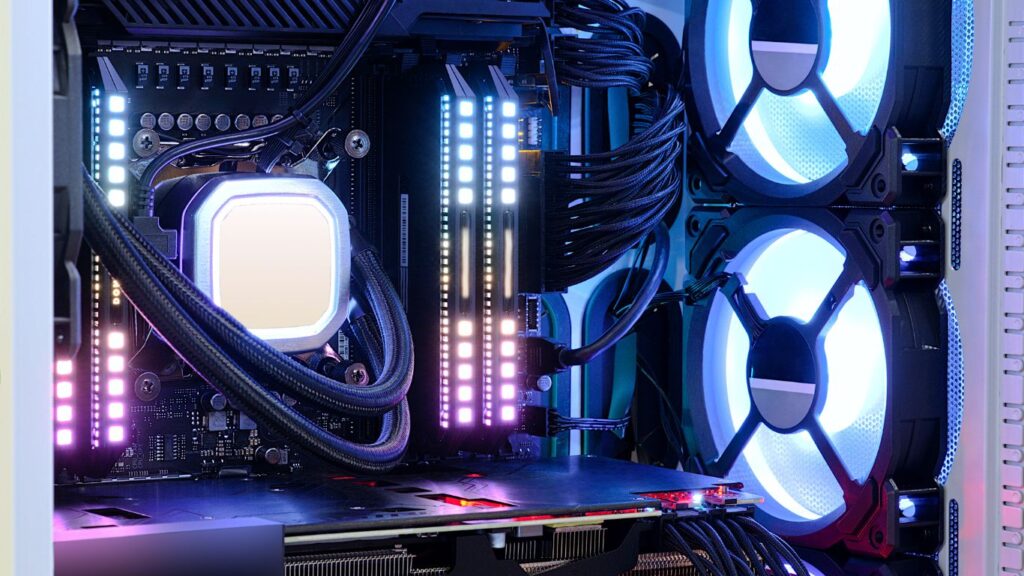
Dust buildup inside your computer can block airflow, causing components like the CPU, GPU, and power supply to overheat. Over time, this can lead to slower performance, crashes, and hardware failure.
Tools You’ll Need
- Compressed air canister: For blowing dust out of tight spaces.
- Microfiber cloth: For wiping external surfaces.
- Small brush: For gently loosening dust on fan blades.
- Screwdriver: For opening the case.
Step-by-Step Process
- Turn Off and Unplug the PC: For safety, disconnect the computer from power.
- Open the Case: Use a screwdriver to remove the side panel.
- Use Compressed Air: Blow short bursts of air to remove dust from fans, heatsinks, and other components. Hold the fan blades steady to prevent them from spinning.
- Clean External Vents: Use the compressed air or a brush to clear dust from intake and exhaust vents.
- Reassemble and Power On: Replace the side panel and plug the computer back in.
How Often?
- Clean your computer every 3-6 months.
- For homes with pets or in dusty environments, clean it more frequently.
2. Update Your Operating System and Drivers
Why Updates Are Important
Outdated software and drivers can cause compatibility issues, security vulnerabilities, and performance problems. Regular updates ensure your system runs smoothly and stays secure.
How to Update Windows (or Your OS)
- Check for OS Updates:
- On Windows: Go to Settings > Update & Security > Windows Update and click “Check for updates.”
- On macOS: Open the System Preferences, then click Software Update.
- Install Available Updates: Download and install any pending updates, then restart your computer if prompted.
How to Update Device Drivers
Drivers control how your hardware interacts with the operating system. Keeping them up-to-date ensures optimal performance.
- Use Device Manager (Windows):
- Press
Win + Xand select Device Manager. - Right-click a device (e.g., graphics card) and choose Update driver.
- Press
- Visit Manufacturer Websites: For critical drivers like your GPU or motherboard, download the latest versions directly from the manufacturer’s website.
How Often?
- Check for OS and driver updates monthly.
3. Run Disk Cleanup and Defragmentation Tools
Why This Helps
Over time, unnecessary files accumulate on your hard drive, taking up valuable space and slowing your computer. Disk cleanup removes these files, while defragmentation optimizes file storage on traditional hard drives (HDDs).
How to Perform Disk Cleanup (Windows)
- Open the Disk Cleanup Tool:
- Press
Win + Sand type “Disk Cleanup,” then select the tool.
- Press
- Select a Drive to Clean: Typically, you’ll choose the
C:drive. - Review File Categories: Check the boxes for categories like “Temporary Files” or “Recycle Bin.”
- Click OK to remove the selected files.
How to Defragment a Hard Drive (Windows)
- Open Defragment and Optimize Drives:
- Press
Win + Sand type “Defragment,” then select the tool.
- Press
- Select a Drive to Optimize: Highlight your HDD and click “Optimize.”
- Wait for the Process to Complete: This can take anywhere from minutes to hours depending on the drive size.
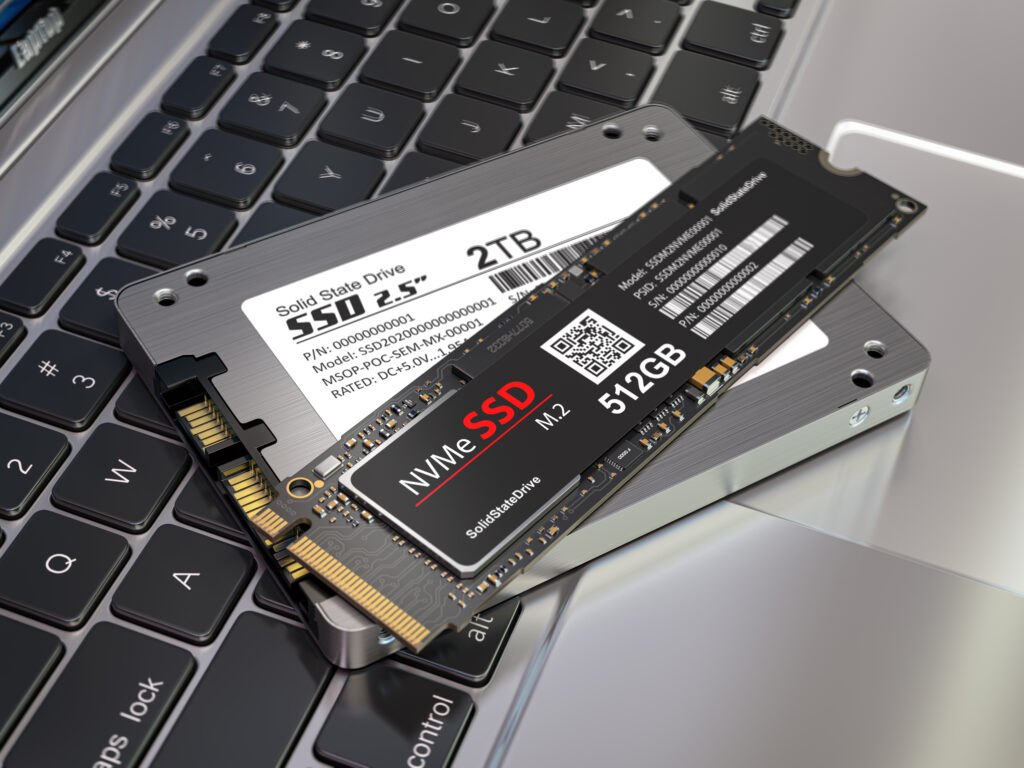
For SSDs
- Do not defragment SSDs. Instead, ensure your OS is set to optimize SSDs automatically by checking the same tool.
How Often?
- Disk Cleanup: Monthly.
- Defragmentation: Every 3-6 months for HDDs.
4. Manage Startup Programs and Background Processes
Why It Matters
Startup programs and unnecessary background processes can slow your computer’s boot time and consume system resources, leading to sluggish performance.
How to Disable Startup Programs (Windows)
- Open Task Manager:
- Press
Ctrl + Shift + EscorCtrl + Alt + Deleteand select Task Manager.
- Press
- Go to the Startup Tab: View a list of programs that launch at startup.
- Disable Unnecessary Programs: Right-click a program and choose “Disable.”
How to Identify Background Processes (Windows)
- Stay in Task Manager and navigate to the Processes tab.
- Sort by CPU or Memory Usage: Identify resource-heavy processes.
- End Tasks Judiciously: Right-click a process and choose “End Task” (only if you’re sure it’s unnecessary).
Tools for Mac Users
- Use System Preferences > Users & Groups > Login Items to disable startup programs.
How Often?
- Review startup programs and processes quarterly.
5. Backup Your Data Regularly
Why Backups Are Crucial
A sudden hardware failure, malware attack, or accidental deletion can result in permanent data loss. Regular backups ensure your important files are safe.
Backup Methods
- External Hard Drives:
- Use tools like File History (Windows) or Time Machine (macOS) to automate backups to an external drive.
- Cloud Storage:
- Services like Google Drive, Dropbox, or OneDrive offer secure, off-site storage for critical files.
- Disk Imaging Software:
- Tools like Macrium Reflect or Acronis True Image create a full snapshot of your system, allowing for complete restoration.
How to Set Up File History (Windows)
- Plug in an external drive.
- Go to Settings > Update & Security > Backup.
- Click Add a drive and select your external drive.
- Turn on File History and choose what to back up.
How Often?
- Schedule backups weekly or monthly, depending on how often your files change.
Bonus Tips for Optimal PC Performance
- Keep Antivirus Software Up-to-Date
- Malware can wreak havoc on your system. Use trusted antivirus software and perform regular scans.
- Monitor System Temperature
- Use tools like HWMonitor or Core Temp to check if your CPU and GPU are overheating.
- Upgrade Your Hardware When Necessary
- If your PC feels consistently sluggish, consider adding more RAM, upgrading to an SSD, or replacing an old processor.
- Uninstall Unused Programs
- Periodically review your installed software and remove apps you no longer use.
- Organize Your Files
- A cluttered desktop or poorly organized files can slow you down. Use folders and proper naming conventions to stay organized.
Final Thoughts
Regular computer maintenance doesn’t have to be intimidating or time-consuming. By performing these five simple tasks—cleaning dust, updating drivers, running disk cleanup, managing startup programs, and backing up your data—you can ensure your PC stays in excellent condition for years to come.
Empower yourself to handle routine upkeep, and you’ll enjoy faster performance, fewer crashes, and peace of mind knowing your computer is in top shape. Start with one task today and build a habit of maintaining your PC—it’s worth the effort!