Tips and Tricks for Boosting Performance
A sluggish computer can be frustrating, hindering productivity and making everyday tasks feel like a chore. While upgrading to a newer machine might seem like the only solution, there are plenty of ways to breathe new life into your existing PC without spending a fortune. This guide explores a range of tips and tricks to improve your computer’s speed, from simple software tweaks to strategic hardware upgrades.
Why is My PC Running Slowly?
Computers slow down for a variety of reasons, including software clutter, hardware limitations, and background processes. Identifying the root cause of poor performance is the first step toward optimizing your PC.
Common Causes of a Slow PC
- Too Many Background Programs: Excessive applications running simultaneously can strain your system’s resources.
- Full or Fragmented Storage: A nearly full hard drive or fragmented files can reduce efficiency.
- Outdated Hardware: Older systems struggle to handle modern software demands.
- Malware or Viruses: Malicious software can consume resources and slow down your system.
- Cluttered Startup Programs: Programs set to launch on startup can extend boot times and bog down performance.
With these causes in mind, let’s explore actionable solutions to speed up your PC.
1. Declutter Your Hard Drive
One of the simplest ways to improve performance is by clearing unnecessary files and optimizing storage space.
Delete Temporary Files
Temporary files accumulate over time and consume valuable disk space.
- Press Windows + R to open the Run dialog box.
- Type
tempand press Enter to access the temporary files folder. - Delete all files in this folder (some may require admin permissions).
- Repeat the process with
%temp%for user-specific temp files.
Uninstall Unused Programs
Old or rarely used software can take up significant storage and run background processes.
- Go to Control Panel > Programs and Features.
- Uninstall programs you no longer need.
Enable Storage Sense (Windows 10/11)
Storage Sense automatically removes unnecessary files.
- Go to Settings > System > Storage.
- Toggle on Storage Sense and configure cleanup settings.
2. Manage Startup Programs
Programs that launch at startup can slow boot times and hog resources. Managing these can lead to faster startups and smoother operation.
Disable Startup Programs
- Press Ctrl + Shift + Esc to open Task Manager.
- Go to the Startup tab.
- Disable unnecessary programs by right-clicking them and selecting Disable.
Use a Startup Manager Tool
Third-party tools like CCleaner allow for more granular control over startup processes.
3. Optimize System Performance Settings
Windows has built-in features to balance performance and visual appeal. Tweaking these settings can significantly improve speed.
Adjust Visual Effects
- Right-click This PC and select Properties.
- Click Advanced System Settings > Performance Settings.
- Choose Adjust for best performance to disable unnecessary visual effects.
- Alternatively, select Custom and disable only the effects you don’t need (e.g., animations and shadows).
4. Keep Your PC Clean and Virus-Free
Malware and unnecessary files can cause performance bottlenecks. Regular maintenance keeps your PC running smoothly.
Run a Malware Scan
- Use Windows Defender or a third-party antivirus solution like Malwarebytes to scan for malware.
- Perform a full scan to detect hidden threats.
Use Disk Cleanup
- Search for Disk Cleanup in the Start menu.
- Select the drive you want to clean and choose file types to remove (e.g., Recycle Bin files, temporary files).
Defragment Your Hard Drive
Fragmented files on traditional hard drives slow access times.
- Search for Defragment and Optimize Drives in the Start menu.
- Select your drive and click Optimize (not necessary for SSDs).
5. Update Software and Drivers
Outdated drivers and software can cause compatibility issues and slow performance.
Update Windows
- Go to Settings > Update & Security > Windows Update.
- Check for updates and install them promptly.
Update Drivers
- Use Device Manager to update drivers for essential components like graphics cards and network adapters.
- Visit manufacturer websites for the latest driver versions (e.g., NVIDIA, AMD, or Intel).
6. Upgrade Your Hardware
When software optimizations aren’t enough, hardware upgrades can provide a significant performance boost.
Add More RAM
- Upgrading RAM is one of the most cost-effective ways to improve multitasking and speed.
- Check your motherboard’s compatibility before purchasing additional memory.
- Install the new RAM sticks into the appropriate slots, ensuring they’re securely seated.
Upgrade to an SSD
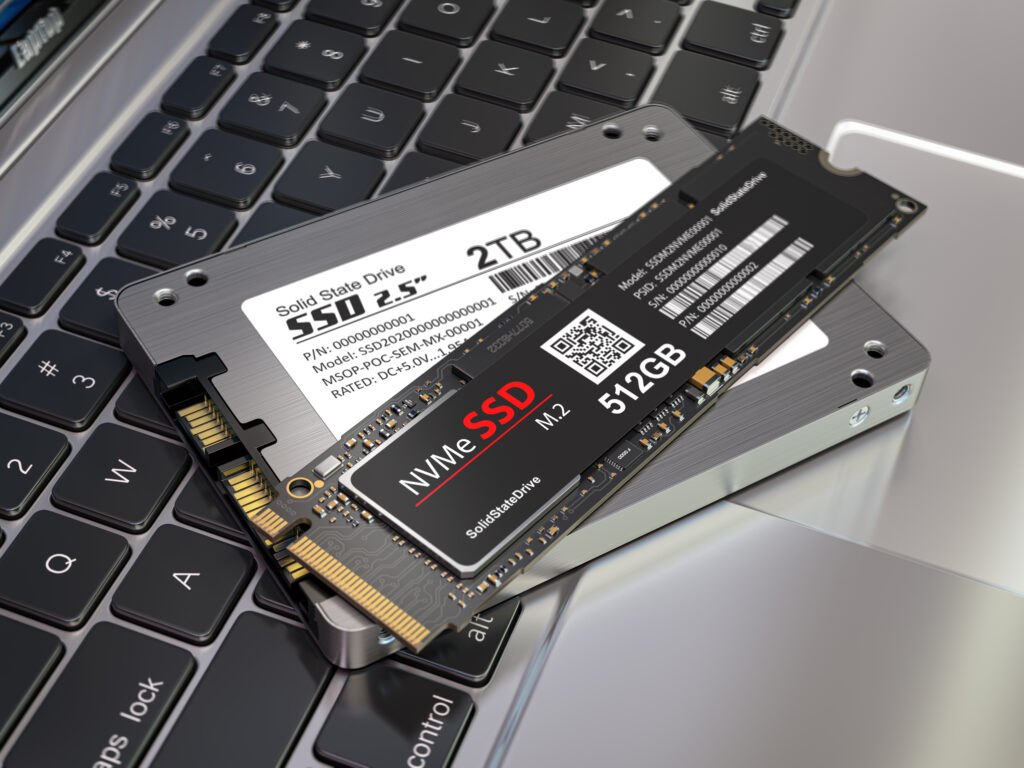
- Replace your old hard drive with a solid-state drive (SSD) for faster boot times and application loading.
- Clone your current drive to the SSD or perform a clean installation of Windows.
Upgrade Your GPU
- If you use your PC for gaming, video editing, or 3D rendering, upgrading the graphics card can deliver better performance.
7. Disable Background Processes and Services
Background processes and unnecessary services consume valuable resources.
Close Background Applications
- Open Task Manager (Ctrl + Shift + Esc) and identify processes consuming high CPU or memory.
- Right-click and select End Task for unnecessary applications.
Disable Unnecessary Services
- Press Windows + R, type
services.msc, and press Enter. - Right-click unnecessary services (e.g., Bluetooth Support if unused) and select Stop.
8. Use a Performance Monitoring Tool
Performance monitoring tools provide insights into system bottlenecks, allowing you to target specific issues.
Built-in Windows Tools
- Resource Monitor: Press Windows + R, type
resmon, and press Enter. - Performance Monitor: Type perfmon in the Run dialog box to track resource usage and system performance.
Third-Party Tools
- Use tools like HWMonitor, MSI Afterburner, or CPU-Z for advanced diagnostics.
9. Reduce Browser Overhead
Web browsers can consume significant system resources, especially if you use multiple tabs and extensions.
Clear Browser Cache
Regularly clear your browser’s cache and cookies to prevent slowdowns.
- Open your browser settings and find the Clear Browsing Data option.
Disable Extensions
- Review installed extensions and remove those you don’t use.
- In Chrome, go to chrome://extensions/ to manage them.
Switch to a Lightweight Browser
Consider browsers like Opera GX or Brave, which are optimized for speed and resource management.
10. Perform a Fresh Install of Windows
If all else fails, a clean installation of Windows can resolve persistent performance issues caused by software corruption or clutter.
Steps for a Clean Install
- Backup your important files to an external drive or cloud storage.
- Download the Windows Media Creation Tool from Microsoft’s website.
- Create a bootable USB drive.
- Boot from the USB drive and follow the on-screen instructions to reinstall Windows.
Preventative Tips for Long-Term Performance
Once you’ve optimized your PC, regular maintenance can help prevent future slowdowns.
1. Keep Software Updated
- Regularly update your operating system and applications to ensure compatibility and security.
2. Schedule Maintenance
- Set reminders to clean temporary files, run malware scans, and defragment your drives every few months.
3. Avoid Resource-Intensive Applications
- Be mindful of applications that require significant system resources and consider alternatives when necessary.
4. Practice Safe Browsing
- Use antivirus software and avoid downloading files or applications from untrusted sources.
When to Consider Replacing Your PC
Even with upgrades and optimizations, there comes a time when your PC may be too outdated to meet modern demands. Consider replacing your system if:
- It’s over 5–7 years old and struggles to run basic tasks.
- Hardware upgrades aren’t compatible with your motherboard.
- Performance issues persist despite multiple optimizations.
Final Thoughts
A slow computer doesn’t have to be a permanent problem. With the tips and tricks in this guide, you can identify the causes of sluggish performance and take targeted steps to resolve them. Whether you’re managing startup programs, upgrading hardware, or performing a fresh install of Windows, each action can bring noticeable improvements to your PC’s speed.
Remember, regular maintenance and proactive upgrades are key to keeping your system running smoothly in the long term. By following these strategies, you’ll not only boost your PC’s performance but also extend its lifespan.