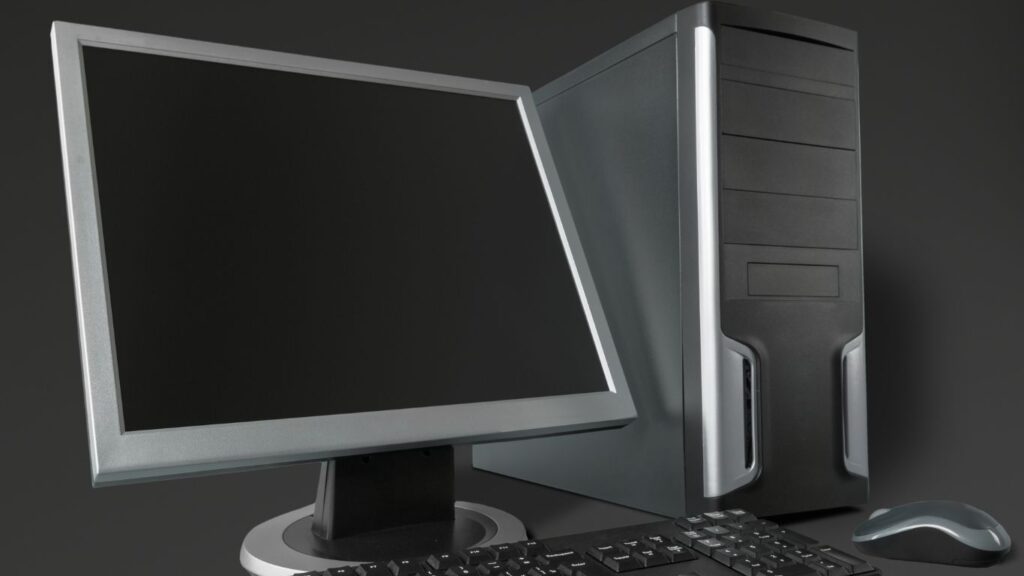
Computers have become indispensable in our daily lives, from managing work to staying connected with loved ones. However, like any technology, they’re prone to problems that can disrupt productivity and cause frustration. The good news? Many of these issues can be resolved without professional help. This guide dives into the top 10 most common computer problems and provides practical solutions to fix them.
1. Slow Computer Performance
A sluggish computer is one of the most common complaints among users. Whether it’s taking forever to boot up or programs are lagging, slow performance can quickly test your patience.
Why It Happens:
- Too many applications running in the background.
- Lack of storage space on the hard drive.
- Malware or viruses hogging system resources.
- Outdated or insufficient hardware.
How to Fix It:
- Manage Startup Programs:
- On Windows, press
Ctrl + Shift + Escto open Task Manager, then go to the “Startup” tab to disable unnecessary programs. - On macOS, navigate to System Preferences > Users & Groups > Login Items.
- On Windows, press
- Clear Disk Space:
- Use Disk Cleanup on Windows or Storage Management on macOS to delete temporary files and clear up space.
- Scan for Malware:
- Install reliable antivirus software, such as Norton or Malwarebytes, and perform a full scan.
- Hardware Upgrade:
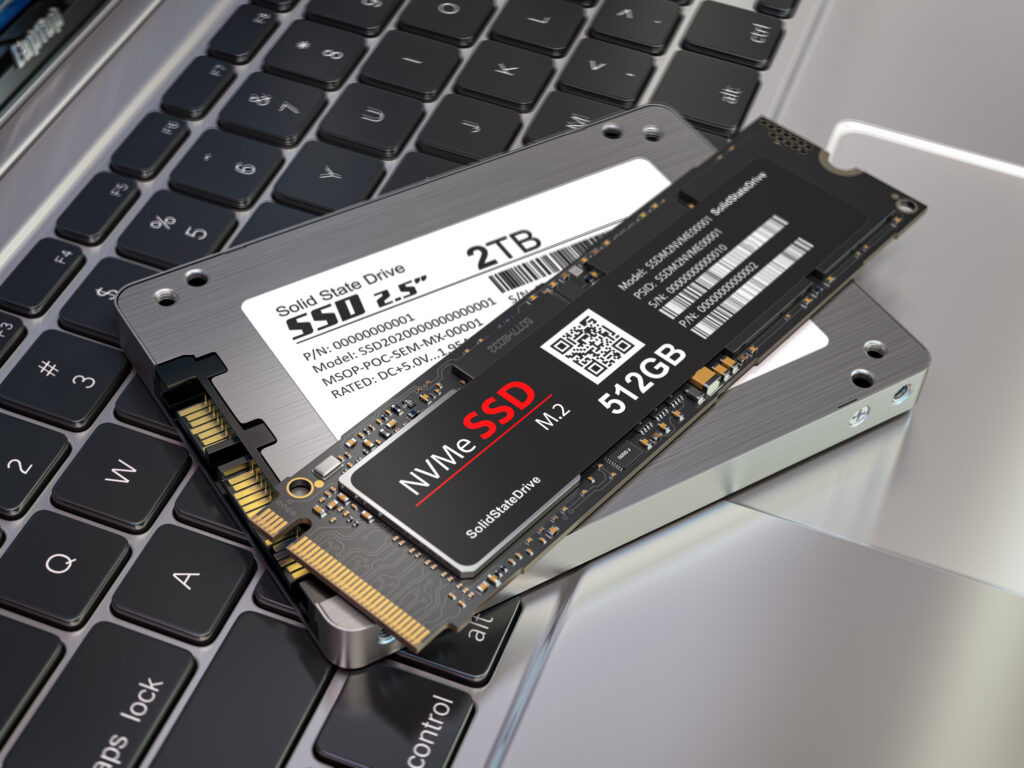
- Consider upgrading to an SSD for faster performance or adding more RAM if multitasking slows your system.
2. Internet Connectivity Issues
In today’s digital age, a stable internet connection is crucial. Connectivity issues can range from being unable to connect to the internet to painfully slow speeds.
Why It Happens:
- Outdated network drivers or faulty hardware.
- Router or modem issues.
- Physical obstructions or interference.
How to Fix It:
- Restart Your Router:
- Turn off your modem/router, wait for 30 seconds, and power it back on.
- Update Network Drivers:
- On Windows, go to Device Manager, right-click your network adapter, and select “Update driver.”
- Check Wi-Fi Signal:
- Ensure you’re close to the router and avoid obstructions like walls or large furniture.
- Contact Your ISP:
- If the problem persists, your internet service provider may need to investigate.
3. Frozen or Unresponsive Screen
An unresponsive screen can be frustrating, especially when you’re in the middle of an important task.
Why It Happens:
- Overloaded CPU or RAM due to excessive processes.
- Software bugs or system conflicts.
How to Fix It:
- Force Quit Applications:
- On Windows, press
Ctrl + Alt + Deleteand select “Task Manager.” - On macOS, press
Command + Option + Escapeto force quit applications.
- On Windows, press
- Restart Your Computer:
- Hold down the power button if necessary. Restarting clears temporary glitches.
- Upgrade Memory:
- If freezing occurs often, consider upgrading your RAM.
4. Blue Screen of Death (BSOD)
The infamous Blue Screen of Death (BSOD) is a system crash that signals something has gone seriously wrong.
Why It Happens:
- Hardware failures, such as faulty RAM or hard drives.
- Outdated or incompatible drivers.
- Corrupt system files.
How to Fix It:
- Note the Error Code:
- The BSOD often displays an error code (e.g., “IRQL_NOT_LESS_OR_EQUAL”). Use this code to search for specific solutions.
- Update Drivers:
- Use tools like Driver Booster or manually update drivers through Device Manager.
- Run Diagnostics:
- On Windows, use the built-in Memory Diagnostic Tool or check your hard drive for errors.
- Perform a System Restore:
- Roll back to a previous point when your computer was functioning correctly.
5. Overheating
An overheated computer can lead to sudden shutdowns and even hardware damage if not addressed promptly.
Why It Happens:
- Dust buildup in fans or vents.
- Poor airflow or ventilation.
- Failing cooling components, such as a broken fan.
How to Fix It:
- Clean the Inside:
- Use compressed air to clean dust from fans, vents, and other internal components.
- Improve Ventilation:
- Place your computer on a flat, ventilated surface and avoid blocking vents.
- Replace Thermal Paste:
- If you’re comfortable with hardware, reapply thermal paste to the CPU to improve heat dissipation.
6. Software Crashes
When your favorite application crashes unexpectedly, it can disrupt your workflow and lead to data loss.
Why It Happens:
- Corrupt program files or outdated software.
- Compatibility issues with the operating system.
How to Fix It:
- Update or Reinstall the Software:
- Download the latest version of the software from the developer’s website.
- Check for System Updates:
- Ensure your operating system is up-to-date.
- Run Built-In Troubleshooters:
- On Windows, go to Settings > Troubleshoot to find solutions for common app issues.
7. Keyboard or Mouse Not Working
A non-functional keyboard or mouse can halt productivity.
Why It Happens:
- Loose or faulty connections.
- Driver issues.
- Hardware damage.
How to Fix It:
- Check Connections:
- For wired devices, ensure the cables are securely plugged in.
- For wireless devices, replace the batteries and re-pair them with your system.
- Update or Reinstall Drivers:
- Uninstall and reinstall device drivers in Device Manager.
- Test on Another Device:
- Plug the device into a different computer to confirm if it’s functional.
8. Black Screen on Startup
A black screen on startup can prevent you from accessing your computer entirely.
Why It Happens:
- Loose cables or hardware issues.
- Problems with graphics card drivers.
- Incorrect boot sequence.
How to Fix It:
- Check Connections:
- Ensure the monitor cable is securely connected to both the computer and the screen.
- Boot in Safe Mode:
- On Windows, press F8 during startup to enter Safe Mode. Update or roll back graphics drivers if necessary.
- Reset BIOS Settings:
- Access BIOS by pressing a key during startup (e.g., F2 or Delete) and restore default settings.
9. Printer Not Printing
Printers are notoriously finicky, and nothing is more frustrating than a printer that refuses to work.
Why It Happens:
- Paper jams or empty ink cartridges.
- Driver or connectivity issues.
How to Fix It:
- Restart and Clear the Print Queue:
- Restart your printer and cancel stuck print jobs.
- Reinstall Drivers:
- Download and install the latest drivers from the manufacturer’s website.
- Check for Physical Issues:
- Look for paper jams, low ink levels, or improperly loaded paper.
10. Battery Not Charging
If your laptop battery isn’t charging, it can limit mobility and productivity.
Why It Happens:
- Faulty charger or power port.
- Worn-out battery.
- Software misconfigurations.
How to Fix It:
- Test with a Different Charger:
- Borrow a compatible charger to rule out issues with your original one.
- Update Power Drivers:
- Update the battery or power management drivers through Device Manager.
- Replace the Battery:
- If your laptop is several years old, the battery may need replacement.
Final Thoughts
Dealing with computer problems can be daunting, but many issues have straightforward solutions you can try at home. Regular maintenance—like keeping your system updated, cleaning hardware, and running antivirus scans—can prevent many common problems.
If you’ve tried these solutions and the problem persists, don’t hesitate to seek help from a professional. Staying proactive about maintenance ensures your computer remains reliable, whether for work, entertainment, or staying connected.
What computer problems have you faced recently? Get in touch and let us know if these tips worked for you.