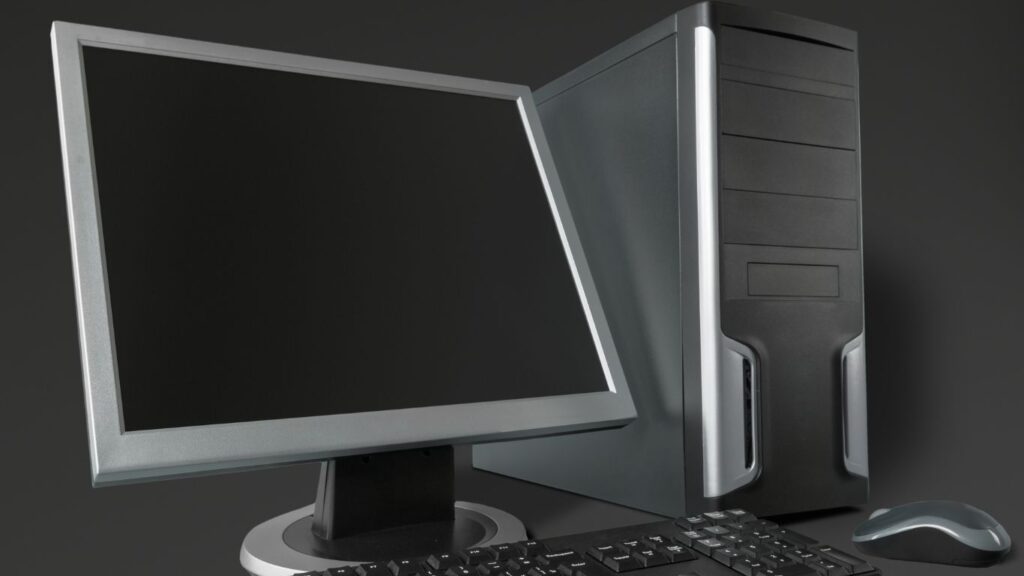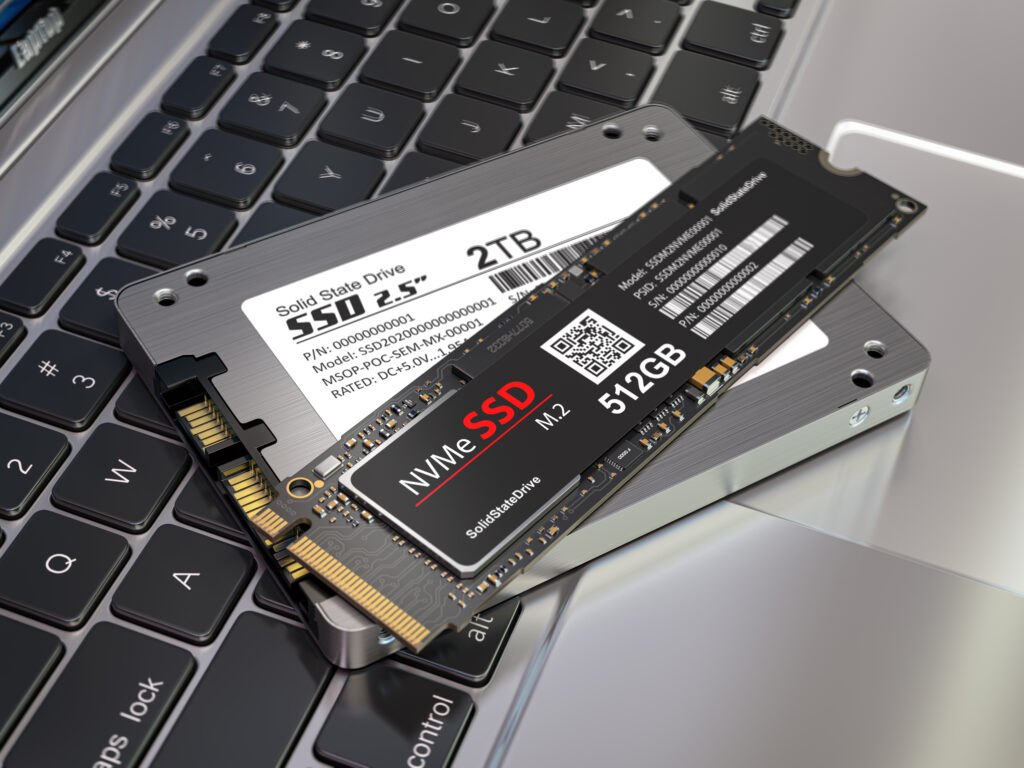
Overheating is one of the most common problems faced by computer users, and if left unresolved, it can lead to severe performance issues, random shutdowns, and even permanent hardware damage. Whether you’re a casual user, gamer, or professional, ensuring your computer stays cool is essential for its longevity and efficiency.
This article explores the causes of computer overheating, the signs to watch out for, and practical solutions to keep your system running at an optimal temperature.
Why Overheating is a Problem
Impact of Excessive Heat on a Computer
When components like the CPU, GPU, or power supply overheat, they can slow down, malfunction, or sustain permanent damage. Heat can also cause the computer’s lifespan to shorten significantly, with critical parts like the motherboard or hard drive becoming compromised.
Key Symptoms of Overheating
- Unusual Fan Noise: Loud or constantly running fans indicate the system is working hard to cool itself.
- Performance Drops: Slower response times or reduced frame rates in games can signal thermal throttling, a protective measure where components lower their speed to reduce heat output.
- Unexpected Shutdowns or Restarts: Systems often shut down automatically when temperatures exceed safe levels.
- Physical Heat: The case feels excessively warm to the touch.
Recognising these symptoms early is key to preventing long-term damage.
Common Causes of Overheating
1. Dust Buildup
Dust accumulation inside the computer is the leading cause of overheating. It clogs fans, heatsinks, and air vents, restricting airflow and insulating heat around critical components.
2. Inadequate Cooling Systems
Some computers, especially older models or budget laptops, come with insufficient cooling solutions. This can include undersized fans, poorly designed vents, or lack of thermal paste application on components.
3. Poor Ventilation
If your computer is placed in an enclosed space or on surfaces like carpets, it may struggle to expel hot air effectively.
4. High Workloads
Intensive tasks like gaming, video editing, or running multiple programmes simultaneously can push hardware components to their thermal limits, especially if they’re not adequately cooled.
5. Faulty or Ageing Components
- Worn-out fans may fail to spin at optimal speeds.
- Thermal paste (which transfers heat from the CPU/GPU to the heatsink) can dry out over time, reducing its effectiveness.
6. Malware or Background Processes
Unwanted software or excessive background processes can put unnecessary strain on the CPU, causing it to overheat even during light usage.
How to Check Your Computer’s Temperature
Using Built-In Tools
Most modern systems include BIOS or UEFI settings that display real-time temperatures. Restart your computer, enter the BIOS (usually by pressing F2, Delete, or Esc during startup), and check the temperature readings under the hardware monitor section.
Software Monitoring Tools
Third-party applications provide detailed temperature insights:
- HWMonitor: Displays temperatures for the CPU, GPU, and other components.
- Core Temp: Focuses on CPU temperature monitoring.
- MSI Afterburner: Ideal for tracking GPU temperatures during gaming.
Safe Temperature Ranges
- CPU: Ideal temperatures range from 30-50°C during idle and up to 80°C under heavy load.
- GPU: Typically operates between 30-40°C idle and up to 85°C during gaming or rendering.
- HDD/SSD: Should stay below 50°C to prevent data loss.
If temperatures exceed these ranges, immediate action is necessary.
Step-by-Step Solutions to Fix an Overheating Computer
1. Clean the Interior of the Computer
Dust is the primary enemy of airflow and cooling efficiency.
What You’ll Need:
- A can of compressed air
- A soft brush
- A microfibre cloth
How to Clean Your Computer:
- Turn Off and Unplug the Computer: Safety first—disconnect the power source before opening the case.
- Open the Case: Use a screwdriver to remove the side panel (for desktops).
- Blow Out Dust with Compressed Air:
- Hold the compressed air can upright and use short bursts to dislodge dust.
- Focus on fans, heatsinks, and power supply vents.
- Brush Delicate Areas: Use a soft brush to clean fan blades and hard-to-reach spots.
- Wipe External Surfaces: Use a microfibre cloth to remove dust from external vents and the case.
- Reassemble the Computer and Test: Plug everything back in and monitor the temperatures to check for improvement.
2. Improve Ventilation
Ensuring proper airflow can significantly reduce heat buildup.
Tips for Optimal Placement:
- Place your computer on a hard, flat surface (not on carpets or cushions).
- Avoid placing the computer against a wall or inside a closed cabinet where hot air cannot escape.
Desktop Users:
Consider adding extra case fans.
- Intake Fans: Draw cool air into the case (usually placed at the front or side).
- Exhaust Fans: Expel hot air out of the case (typically placed at the rear or top).
Laptop Users:
- Invest in a laptop cooling pad to improve airflow beneath the device.
3. Replace or Upgrade Cooling Systems
Reapply Thermal Paste
Thermal paste degrades over time, reducing its efficiency in transferring heat.
- Remove the Heatsink: Carefully detach the CPU or GPU heatsink.
- Clean Old Paste: Use isopropyl alcohol and a lint-free cloth to remove dried thermal paste.
- Apply New Thermal Paste: Add a pea-sized drop of paste to the CPU or GPU.
- Reattach the Heatsink: Ensure it’s secured tightly for proper heat transfer.
Upgrade Fans or Heatsinks
- Replace stock fans with high-performance models.
- Consider installing an aftermarket CPU cooler for better thermal management.
Explore Liquid Cooling
Liquid cooling systems are highly effective for handling intense workloads, such as gaming or video editing.
4. Manage Software and Workload
Close Unnecessary Applications
Too many background applications can overwork the CPU.
- Use Task Manager (press Ctrl + Shift + Esc) to identify and close resource-heavy processes.
Scan for Malware
Run a full scan using trusted antivirus software to detect and remove malware that may be straining your system.
Optimise Power Settings
- For laptops, use the Balanced or Power Saver mode in your power settings to reduce heat output.
- For desktops, ensure unnecessary startup applications are disabled.
5. Monitor and Maintain Over Time
Set Up Alerts
Many hardware monitoring tools allow you to set temperature thresholds that trigger alerts, enabling you to act before overheating becomes a problem.
Regular Maintenance
- Clean your computer every 3-6 months.
- Periodically check and replace cooling components as needed.
When to Seek Professional Help
If your computer continues to overheat despite following these steps, it may indicate a deeper issue:
- Damaged Hardware: Faulty components like the power supply, CPU, or GPU may need repair or replacement.
- Electrical Issues: Voltage irregularities in your home’s power supply can cause overheating.
A professional technician can perform advanced diagnostics to pinpoint and resolve such problems.
Preventing Overheating in the Future
Prevention is better than cure. Here’s how to keep your computer cool:
- Keep It Clean: Regularly remove dust and debris.
- Upgrade When Needed: Invest in better cooling systems or hardware that generates less heat.
- Monitor Performance: Use software tools to keep an eye on temperatures during high workloads.
- Avoid Overclocking: Overclocking increases heat output and can lead to stability issues without adequate cooling.
Final Thoughts
Overheating is a common but preventable issue that affects all types of computers. By understanding its causes and implementing the solutions outlined in this guide—such as cleaning your system, improving ventilation, and managing workloads—you can ensure your computer operates efficiently and remains free from heat-related damage.
Staying vigilant about maintenance and addressing potential problems early will not only improve performance but also prolong your computer’s lifespan. With these proactive measures, you can keep your system running cool and reliable for years to come.