A Comprehensive Guide
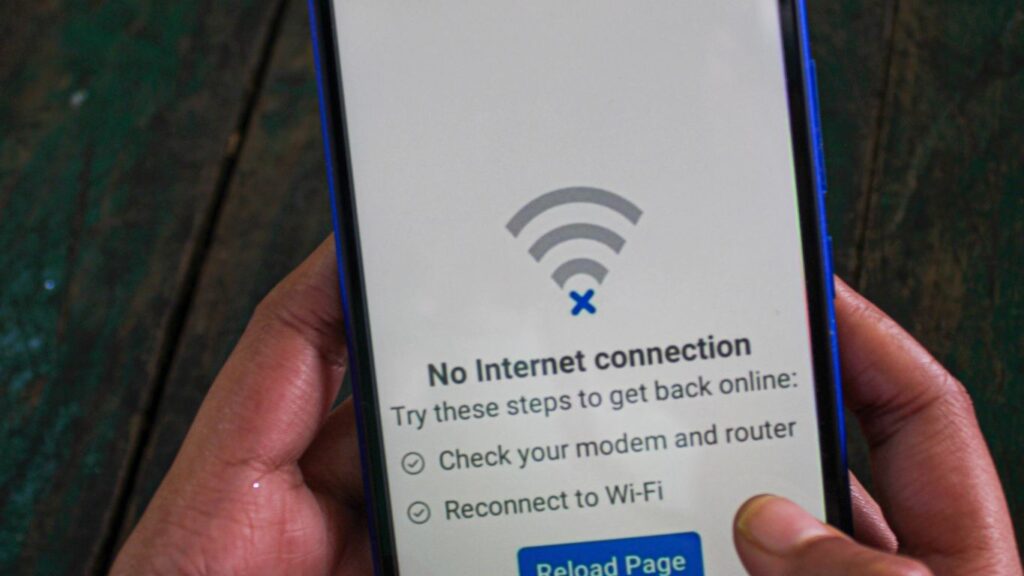
A stable internet connection is essential in today’s interconnected world. However, most of us have faced moments of frustration when the connection drops or refuses to work entirely. From router problems and misconfigured network settings to hardware malfunctions, a variety of issues can disrupt connectivity.
This comprehensive guide will walk you through the most common causes of internet problems and provide step-by-step solutions to restore your connection efficiently.
1. Diagnose the Problem
Before diving into fixes, it’s crucial to identify the root cause of the issue.
1.1. Isolate the Problem
Ask yourself:
- Is the issue affecting a single device or multiple devices?
- Can you connect to other networks, such as mobile hotspots?
- Are certain websites or applications inaccessible, or is the internet entirely down?
This information helps determine whether the problem lies with your device, network, or Internet Service Provider (ISP).
1.2. Check for Outages
Your ISP may be experiencing a service outage.
- Visit your ISP’s website or social media channels for updates.
- Use a mobile connection to check websites like DownDetector to confirm if others are reporting similar problems.
2. Check Your Hardware
2.1. Restart Your Router and Modem
A quick restart can resolve many connectivity issues.
- Turn off your router and modem by unplugging them from the power source.
- Wait 30 seconds, then plug them back in.
- Allow a few minutes for the devices to fully reboot.
2.2. Inspect Cables and Connections
Loose or damaged cables can disrupt internet service.
- Ensure the Ethernet cable is securely plugged into your modem and router.
- Check for visible damage to cables and replace them if necessary.
- Confirm the power adapter is properly connected to the router and wall outlet.
2.3. Check Indicator Lights
Most routers have indicator lights to signal their status.
- Power Light: Should be steady.
- Internet Light: Should be steady or blinking green.
- Wi-Fi Light: Indicates wireless signal activity.
If the lights indicate a problem, consult your router’s manual for guidance.
3. Troubleshoot Wi-Fi Issues
3.1. Move Closer to the Router
Wi-Fi signals weaken with distance and physical obstructions like walls and furniture.
- Test your connection near the router.
- If it improves, consider relocating the router to a central location or using a Wi-Fi extender to boost coverage.
3.2. Check the Wi-Fi Network Name and Password
Ensure you’re connecting to the correct Wi-Fi network and using the correct password.
3.3. Restart the Device
Sometimes the issue is with the device, not the network.
- Restart your phone, laptop, or other device and try reconnecting.
3.4. Forget and Reconnect
For persistent Wi-Fi issues:
- Open your device’s Wi-Fi settings.
- Select your network, then choose Forget Network.
- Re-enter the password to reconnect.
4. Investigate Network Settings
4.1. Check IP Address Settings
An incorrect IP configuration can prevent your device from connecting to the internet.
For Windows:
- Press Win + R and type
cmdto open Command Prompt. - Type
ipconfigand press Enter.- Check if your device has an IP address assigned (e.g., 192.168.x.x).
- If the IP address field is blank or starts with 169.x.x.x, release and renew it:
- Type
ipconfig /release, press Enter. - Type
ipconfig /renew, press Enter.
- Type
For macOS:
- Go to System Preferences > Network.
- Select your active connection and click Advanced.
- Check the TCP/IP tab for an assigned IP address.
4.2. Use the Network Troubleshooter
Most operating systems have built-in troubleshooting tools.
- Windows:
- Go to Settings > Network & Internet > Status.
- Select Network Troubleshooter and follow the prompts.
- macOS:
- Open System Preferences > Network.
- Use the Assist Me feature to diagnose issues.
5. Test Wired Connections
If your device supports Ethernet, test a wired connection to rule out Wi-Fi-related issues.
- Connect your computer directly to the router using an Ethernet cable.
- If the wired connection works, the issue is likely with the Wi-Fi settings or hardware.
6. Check for DNS Issues
The Domain Name System (DNS) translates website names into IP addresses. If it malfunctions, websites may become inaccessible.
6.1. Use an Alternate DNS
Switching to a public DNS server, like Google’s or Cloudflare’s, can resolve DNS-related issues.
For Windows:
- Go to Control Panel > Network and Sharing Centre > Change Adapter Settings.
- Right-click your active connection and select Properties.
- Double-click Internet Protocol Version 4 (TCP/IPv4).
- Select Use the following DNS server addresses and enter:
- Preferred DNS: 8.8.8.8
- Alternate DNS: 8.8.4.4
For macOS:
- Go to System Preferences > Network.
- Select your active connection, then click Advanced > DNS.
- Add the following DNS addresses:
- 8.8.8.8
- 8.8.4.4
6.2. Flush the DNS Cache
Clearing the DNS cache can resolve conflicts.
For Windows:
- Open Command Prompt (
cmd). - Type
ipconfig /flushdnsand press Enter.
For macOS:
- Open Terminal.
- Type
sudo killall -HUP mDNSResponderand press Enter.
7. Address Router and Firmware Issues
7.1. Update Router Firmware
Outdated firmware can cause connectivity issues.
- Log into your router’s admin interface by entering its IP address (e.g., 192.168.1.1) into a browser.
- Check for firmware updates under the Settings or Maintenance tab.
- Follow the manufacturer’s instructions to install updates.
7.2. Reset the Router
If problems persist, reset the router to factory settings.
- Locate the reset button, often found on the back of the device.
- Hold it down for 10-30 seconds until the router restarts.
- Reconfigure your network using the setup guide.
8. Scan for Malware and Viruses
Malware can interfere with network settings and block internet access.
- Use trusted antivirus software to perform a full system scan.
- Remove any detected threats and restart your computer.
9. Inspect Hardware for Damage
If none of the above solutions work, there may be a hardware issue.
9.1. Check the Network Card
Your computer’s network card may be malfunctioning.
- Test the connection with another device.
- If the network card is faulty, replace it or use an external USB network adapter.
9.2. Replace the Router
Routers degrade over time and may require replacement. Contact your ISP or purchase a new router if yours is outdated or showing signs of failure.
10. Contact Your ISP
If all else fails, contact your Internet Service Provider for support. Be prepared to:
- Explain the steps you’ve already taken to resolve the issue.
- Provide details about the problem, such as error messages or indicator light patterns.
ISPs can run remote diagnostics and send a technician if necessary.
Preventing Future Connectivity Issues
- Perform Regular Maintenance: Restart your router monthly and update its firmware regularly.
- Secure Your Network: Use strong passwords and enable WPA3 or WPA2 encryption to protect your network from intrusions.
- Invest in Quality Equipment: High-quality routers and network cards improve reliability and performance.
- Monitor Network Activity: Use tools like Fing or GlassWire to detect unusual activity and troubleshoot faster.
Final Thoughts
Internet connectivity issues can be frustrating, but with a systematic approach, most problems can be resolved without professional assistance. By diagnosing the root cause, inspecting hardware, and optimising network settings, you can restore your connection and minimise future disruptions.
Remember, technology isn’t infallible, but a little patience and troubleshooting knowledge can go a long way in keeping you connected. If all else fails, your ISP is just a call away.